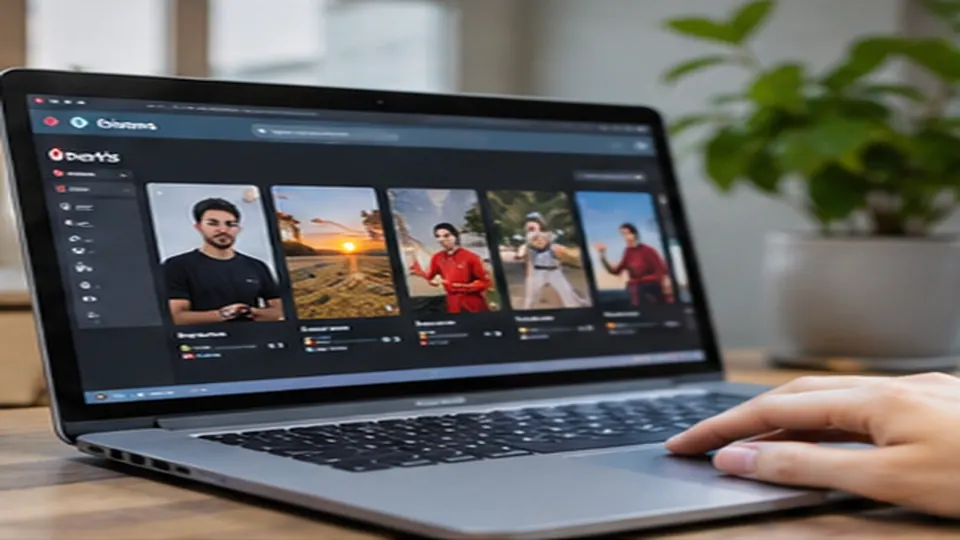
YouTube Shorts watch time on a computer can feel just as smooth as on a phone once you know where the vertical feed lives and how to move a clip into the regular player. Desktop viewing gives you a bigger screen, a keyboard and a mouse, which makes pausing, rewinding and reading descriptions far easier than on a small display.
This walkthrough covers the built-in Shorts feed in a desktop browser, the trick of opening any Short as a normal video, and the settings that make long sessions more comfortable. Each method works on Windows, macOS, Linux and ChromeOS because everything happens inside a modern web browser.
Using the Shorts Feed in a Desktop Browser
Open youtube.com in Chrome, Edge, Firefox or Safari and look for Shorts in the left-hand menu. Selecting it loads a vertical player in the centre of the screen, with like, comment and share buttons beside the video. Scrolling with the mouse wheel or the arrow keys moves to the next clip, mirroring the swipe gesture from the mobile app.
Signing in improves recommendations because the feed uses your watch history and subscriptions. Without an account, Shorts still play normally, but suggestions are more general and you cannot like, save or subscribe from the feed.
- Mouse wheel or Down Arrow: next Short
- Up Arrow: previous Short
- Space bar or K: pause and resume (when the player has focus)
- M: mute or unmute
Opening a Short in the Full Player
Every Short is an ordinary YouTube video with an 11-character ID, which means it can also play on the standard watch page. Change youtube.com/shorts/VIDEO_ID to youtube.com/watch?v=VIDEO_ID and the same clip loads with a seek bar, playback speed menu, captions toggle, theatre mode and the complete description.
Editing links by hand gets tedious, especially with a long list. The free yt short converter does the swap instantly: paste one or many Shorts links and copy the watch links it returns, or open them straight in a new tab.
Feed versus Full Player at a Glance
| Feature | Shorts feed | Watch page |
|---|---|---|
| Next clip on scroll | Yes | No, autoplay suggestions instead |
| Seek bar for scrubbing | Limited | Full timeline |
| Playback speed menu | Varies by version | Yes |
| Theatre and full screen | Full screen only | Both |
| Full description and chapters | Shortened panel | Complete |
Keyboard Controls That Make Desktop Viewing Easier
The standard player supports a wide set of shortcuts. J and L jump back and forward by ten seconds, the comma and full stop keys step frame by frame while paused, and Shift with the full stop or comma changes playback speed. These shortcuts are especially useful for tutorials, recipes and quick tips packed into a short runtime.
Press F for full screen and T for theatre mode. Because most Shorts are vertical, theatre mode leaves dark space on both sides, so full screen or the default view often looks better on a widescreen monitor.
Getting the Best Picture on a Wide Screen
Vertical video was designed for phones, so a 16:9 monitor shows the clip in a tall column. Zooming the browser out a little can shrink surrounding page elements and keep the whole frame visible without scrolling. On ultrawide screens, the regular watch page often gives a more balanced layout than the Shorts feed.
Laptop users can rotate a convertible device into portrait mode, which fills the display with the clip. External monitors with a pivot stand work the same way and are popular with creators who review lots of vertical footage.
- Use browser zoom (Ctrl and minus, or Cmd and minus) to fit tall clips
- Try portrait orientation on convertible laptops or pivot monitors
- Pick the quality manually in the settings menu when your connection is unstable
Saving and Sharing Shorts from a Computer
Signed-in viewers can add any Short to Watch Later or a playlist through the three-dot menu on the watch page. Playlists made on a computer sync to the phone app, so a clip saved at your desk is ready on the move.
Sharing works through the Share button, which offers a short youtu.be address. Converting that address with yt short also gives you an embed snippet for blogs and course pages, which suits teachers and writers who reference short clips.
Common Desktop Problems and Quick Fixes
Black screens, endless loading or missing sound usually trace back to browser extensions, outdated browsers or hardware acceleration conflicts. Opening the clip in a private window is a quick way to test whether an extension is responsible.
If a converted watch link reports that the video is unavailable, the uploader may have deleted it or restricted it by region or age. Our article on fixing Shorts that will not play walks through each cause in more detail.
- Update the browser to its latest version
- Disable extensions one at a time to find a conflict
- Toggle hardware acceleration in browser settings
- Clear cached images and files, then reload the page
Who Gains the Most from Desktop Viewing
Students taking notes from short explainers benefit from pausing and replaying sections. Researchers and marketers reviewing trends can open many clips side by side in tabs, something the single-feed mobile app does not support. Viewers with visual or motor difficulties often find a large screen and keyboard far easier than small touch targets.
Casual viewers also gain comfort during longer sessions, since a desk chair and a large display reduce neck strain compared with holding a phone. Pairing the feed for discovery with the full player for clips worth studying gives the best of both styles.
Conclusion
YouTube Shorts watch sessions on a computer combine the quick discovery of the vertical feed with the control of the standard player. Use the Shorts tab for browsing, switch interesting clips to the watch page for scrubbing and speed control, and lean on keyboard shortcuts to move quickly.
When you collect links for notes, lessons or sharing, the yt short link converter turns any Shorts address into clean watch, share and embed links in a single step, right inside your browser.
 YouTube Shorts Watch for Free: What You Get Without Premium
 YT Shorts App Explained: Finding Shorts on Android and iPhone
 Shorts Video Format Explained: Length, Ratio and Resolution